


When deploying Windows with MDT you want to customize everything during deployment. One customization that many system admin want to do during deployment is changing the way the Start Menu from Windows 10 looks. Check out the steps below to configure your next deployment to have a custom Start Menu.

Step 1: Open the Start Menu:


Step 2: Remove or Add items to the Start Menu:
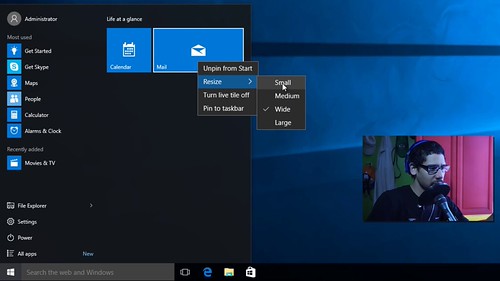
Step 3: Open the command prompt as an Admin and create a folder. I placed my folder within the C drive, so I did a command of “mkdir c:\layout“:

Step 4: Once the folder is created you will have to get into PowerShell command, so type in “powershell” and hit enter:

Step 5: In the PS(PowerShell) command type in the following – export-startlayout -path c:\layout\layoutmodification.xml – Note: the folder path will be different on your part and you can call the *.xml file whatever name you want.

Step 6: I created a custom Run Command Line task to copy the *.xml file to the Windows temp folder. %SCRIPTROOT%\BTNHD\StartMenu\LayoutModification.xml c:\Windows\Temp
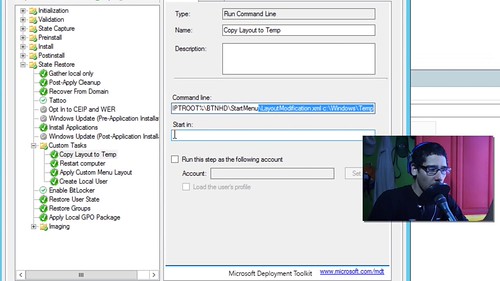
Step 7: Create a PowerShell Script custom task to call out the PowerShell script: %SCRIPTROOT%\BTNHD\StartMenu\ApplyCustomMenu.ps1 (look at Step 8 for the ApplyCustomMenu.ps1 code)

Step 8: Within the ApplyCustomMenu.ps1 file will contain the following code: import-startlayout -layoutpath c:\Windows\Temp\LayoutModification.xml -MountPath $env:SystemDrive\
